Why Doom Emacs?

Way back in September I posted about my new Emacs Writing Set Up: Productivity Overview

Things might have appeared to have gone a little quiet since then. Behind the scenes, however, I’ve been making changes. One of these is to begin the process of moving my Emacs Writing Setup across to GitHub: https://github.com/ballantony/emacs-writing.

I’ll continue to blog relevant content here. Here’s the first, explaining why I’ve adopted Doom Emacs.


Emacs is incredibly configurable. I can choose, for example, the shape and contents of my agenda, the completion engine I use and even such things as the colour of my Todos.

And that’s a problem. Emacs allows me to configure many things that, if I’m honest, I really don’t care about.

It’s very easy to fall into the Emacs trap of sending time configuring the system rather than doing any actual work. I don’t want to think about how many hours I’ve spent experimenting with new packages and thinking of the perfect key bindings when I could have been writing stories instead. GTD can be a powerful procrastinator.

That’s why I’m happy to let someone else do it for me.

Enter Doom Emacs. So what if the TODOs are a different colour to the ones I use, and the capture templates aren’t quite the ones I was using, they’re still good. The key bindings may be different, but they’re far more extensive than any I’ve ever set up and I could probably finish a short story in the time it would take me to replicate them (and I can always override the few I really care about: C-e for example).

Most of all, Henrik Lissner, the creator of Doom Emacs, knows so much more about Emacs than I. I’ve learned so much simply tracking through his code. I wasn’t aware of Vertico until it turned up in the Doom config. I don’t have the time or inclination to try out all new Emacs packages. It’s great that someone else is doing this, and if I don’t like their choices, well, Doom is flexible enough for me to change them.

One final observation. Doom Emacs is fast to load. This is important to me. I like to take notes or begin writing when inspiration strikes. I can open Doom Emacs (or Orgzly on my mobile phone) and take a note in the time it takes apps such as Evernote or Notion to load.
Productivity Overview

My second most popular post ever describes my Emacs Writing Setup. (My most popular post, if you’re interested, is this one.)

I wrote five novels and about thirty short stories using the method described in my Emacs Writing Setup, all the while experimenting with other methods. For example, I replicated some Scrivener features in Emacs and wrote about them here.

But over the past year all this has changed. So much so that I’m rewriting my Emacs Writing Setup from scratch.

So what’s changed? Briefly, I’ve started using org-roam and Doom Emacs for my writing flow. This has had a knock on effect for my productivity flow in general.

I think that I’m a productive person. I’m an assistant head teacher. I’ve had 8 novels and around 70 short stories short stories published. I maintain three blogs. I play jazz piano, accordion and baritone horn and am a member of two bands. Most importantly I’m a husband, carer and father to two children.

My two secrets? I watch very little TV and I rely heavily on productivity systems. I think if you’re not using a system then you’re not meeting your full potential.

The systems I use are GTD and Zettelkasten. I’ve experimented with others, but these are the two that best match my needs and personality.

I’ve also experimented with various software applications over the years. I’ve yet to find one piece of software that meets all my needs, although Emacs comes close. If I were to work solely on a laptop, that’s all I would use, but like most people I also rely on a phone and browser.

Orgzly and beorg do a good job of replicating the Emacs experience on a phone, but Emacs without a proper keyboard is always unsatisfying. And, as yet, I’ve not found a satisfactory way of using Emacs via a browser.

So my current productivity system relies on three ‘applications’

  • Emacs
  • Evernote
  • Notebook and pen (I use Leuchtturm1917 notebooks and Uniball Jetstream pens for preference)

I use Emacs for most things, principally org-mode for writing and org-roam for Zettelkasten

Why do I use Evernote when I have Emacs? Remember, Zettelkasten is a tool for thinking, it’s not a reference tool. One of the principles of Zettelkasten is that you should separate your notes from your reference materials.

Evernote is ideal for reference, it’s also more suited for phone and browser access. The newly added Evernote Tasks feature goes some way to replicating org-agenda. Okay, it’s got a long way to go to match Emacs but I can live with it for the convenience. (I experimented with Todoist for a while before Evernote tasks came out. I liked Todoist so much I almost feel guilty for not using it. It’s an excellent piece of software, but I like to have all my to dos in one place)

Finally, I use a notebook for ideas and thinking things through.

As word documents are the de facto standard in the publishing world , I still use LibreOffice Writer for submissions and editing, but I would say that I spend 99% of my time on Emacs, Evernote and in my Notebook.

This series of posts describe how I use these Emacs, Evernote and my notepad to implement GTD and Zettelkasten, particularly to support my writing process. As I don’t have the patience to watch videos, as I’m not interested in personal anecdotes or dubious research to support self evident points I won’t be including any of those things here. I will include How Tos and config files for those who are interested.

If there’s anything missing, let me know.

Productivity 2021

My second most popular post ever describes my Emacs Writing Setup. (My most popular post, if you’re interested, is this one.)

I wrote five novels and about thirty short stories using the method described in my Emacs Writing Setup, all the while experimenting with other methods. For example, I replicated some Scrivener features in Emacs and wrote about them here.

But over the past year all this has changed. So much so that I’m rewriting my Emacs Writing Setup from scratch.

So what’s changed? Briefly, I’ve started using Zettelkasten, org-roam and Doom Emacs for my writing flow. This has had a knock on effect for my productivity flow in general.

Over the next few months I’ll be going over my new set up. Let me know what you think.

You’re using folders and tags the wrong way round

According to Ian Small, CEO of Evernote, only 5% of Evernote users use tags. Evernote is not the only application that uses tags and folders, and I suspect the picture is similar in other applications. Most users rely on folders alone to categorize their work. I can understand this. Everyone has used paper folders in real life, the folders in applications replicate this experience.

However I think tagging is better, the reason being that although a note can only be in one folder, it can have more than one tag.

Here’s an example. Suppose you have personal notes and work notes. Some of those notes are just regular notes, some notes outline projects. You could tag your notes as follows:

  • Holiday (personal, project)
  • Shopping (personal)
  • User Manual (work, project)
  • Presentation (work)

Tagging like this gives you more flexibility. You can now filter for all of your projects, or filter for work projects only. By adding additional tags for things such as year 2021, 2022 you can then find, for example, all the personal projects you started in 2021.  Tagging gives your searches a granularity you don’t get by using folders.

Does that mean folders are no use? No. Folders are useful when something can only be on one state. A good example is :

  • Todo
  • In Progress
  • Done

You can set up those three folders and move notes between them. This is the opposite of the commonly recommended practice that you tag work with Todos.

Why are folders better? Because notes can only be in one folder at a time. It’s possible to accidentally tag a note as both Todo and Done. There’s also something quite satisfying about dragging a note from the In Progress to the Done folder…

What if you want to separate your work and personal to-dos? There are two ways. You can go to the Todo folder and filter by work or personal tags. Or it might be easier just to have two sets of folders

  • Work Todo
  • Work in Progress

And

  • Personal Todo
  • Personal in progress

Does it matter if you’re using folders and tags the wrong way round? Of course not. If you can find the right note at the right time, your system is fine. My suggestion is that using tags correctly adds flexibility.

ibuffer changed my life

I wanted a quick way to delete all the buffers that can accumulate in an Emacs session. A quick search threw up this post by Martin Owen.

It turned out all I needed was ibuffer mode. ibuffer has a toggle command which selects all unselected buffers.

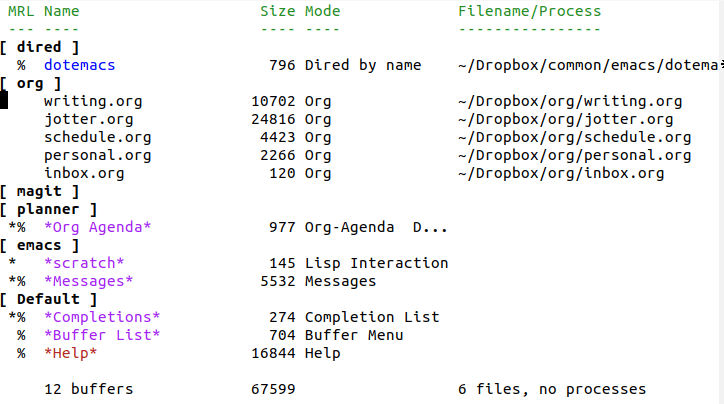
But that’s not all. ibuffer will group your buffers by type, just like in the featured image for this post. It also comes with a range of commands for filtering buffers. Here are my five favourite commands:

  1. t to toggle files selected
  2. / . to filter by extensions
  3. / p to remove top level filter
  4. * h Mark all help buffers
  5. * s Mark all *special* buffers

and here’s my set up: I’ve basically just adapted Martin’s.

(global-set-key (kbd "C-x C-b") 'ibuffer) ; instead of buffer-list
(setq ibuffer-expert t) ; stop yes no prompt on delete

 (setq ibuffer-saved-filter-groups
	  (quote (("default"
		   ("dired" (mode . dired-mode))
		   ("org" (mode . org-mode))
		    ("magit" (name . "^magit"))
		   ("planner" (or
				(name . "^\\*Calendar\\*$")
				(name . "^\\*Org Agenda\\*")))
		   ("emacs" (or
			     (name . "^\\*scratch\\*$")
			     (name . "^\\*Messages\\*$")))))))

(add-hook 'ibuffer-mode-hook
	  (lambda ()
	    (ibuffer-switch-to-saved-filter-groups "default")))

It took me about ten minutes to do all the above from start to finish. Ten minutes well spent, I say.

Pattern Matching: pcase

Haskell allows pattern matching. The following function counts one, two or many objects

simpleCount 1 = "One"
simpleCount 2 = "Two"
simpleCount _ = "Many"

You can use pattern matching to set base cases in recursive functions.

factorial 0 = 1
factorial n = n * factorial (n-1)

Haskell also allows guards. This if statement checks if someone is old enough to drive in the UK

canDrive x = if x<18 then  "Too young to drive" else "Old enough to drive"

Here it is using guards:

canDrive x
          | x<18 = "Too young to drive"       |
          | otherwise = "Old enough to drive" |

pcase

Emacs Lisp offers similar functionality with the pcase macro. It took me some time to understand the documentation, so here are few examples to get you going. They only scratch the surface, make sure you go back and read up properly afterwards.

(defun simple-count (x)
  (pcase x
    (1 "one")
    (2 "two")
    (_ "many")))

(mapcar #'simple-count '(1 2 5))
=> ("one" "two" "many")

Note that _ is used for the don’t care or wildcard case, rather than the more traditional t.

(defun can-drive (x)
  (pcase x
    ((guard (< x 18)) "Too young to drive")
    (_ "Old enough to drive")))

(can-drive 12)
=> "Too young to drive"

The following converts a test mark into a grade. Note the use of and to evaluate (pred stringp). If non nil, it binds x to msg. In other words, pcase can distinguish between marks and teacher comments.

(defun student-grade (x)
  (pcase x
    ((and (pred stringp) msg) msg)
    ((guard (< x 10)) "Fail")
    ((guard (< x 20)) "C")
    ((guard (< x 30)) "B")
    (_ "A")))

(mapcar #'student-grade '("Absent" 23 12 "off roll" 9 35))
=> ("Absent" "B" "C" "off roll" "Fail" "A")

Take a look at this example from the documentation. Again, it uses and to evaluate (pred stringp). If non nil, it binds x to msg.

So, if x is a string, print it; if x is a recognised symbol, print the associated message; otherwise print unknown return code.

(defun my-errors (x)
  (pcase x
    ;; string
    ((and (pred stringp) msg)
     (message "%s" msg))
    ;; symbol
    ('success       (message "Done!"))
    ('would-block   (message "Sorry, can't do it now"))
    ('read-only     (message "The shmliblick is read-only"))
    ('access-denied (message "You do not have the needed rights"))
    ;; default
    (code           (message "Unknown return code %S" code))))

(mapcar #'my-errors '(1 read-only "hello"))
=> ("Unknown return code 1" "The shmliblick is read-only" "hello")

Really Simple Scrivener Mode

Here’s a screenshot of a really simple Scrivener type view for org mode files. I set this up following my simple sidebar set up.

Scriv Sample

I’ve copied the code below (I’ve also joined the 21st Century and started uploading code to GitHub)

The code is actually very simple. To make notes appear in a side window, simply put the letters TR (for top right), BR (for bottom right) or HD (for heading) at the start of a title and then call org-tree-to-indirect-buffer on those headings. I’ve added a key binding to M-s i to make this easy. I like to have certain notes always visible while I’m typing, this system allows me to vary just which notes they are.

And that’s it. Very simple, but I’ve found this very useful when writing.

(defun my-sidebars()
  (setq fit-window-to-buffer-horizontally t)
  (setq window-resize-pixelwise t)

  (setq display-buffer-alist
        `(("\\*Occur\\*" display-buffer-in-side-window
           (side . left) (slot . 0)
           (window-width . fit-window-to-buffer)
           (preserve-size . (t . nil)) 
           (window-parameters . ((no-delete-other-windows . t))))
          (".*\\.org-HD." display-buffer-in-side-window
           (side . top) (slot . 0) 
           (preserve-size . (t . nil)) 
           (window-parameters . ((no-delete-other-windows . t))))
          (".*\\.org-TR." display-buffer-in-side-window
           (side . right) (slot . -1) 
           (preserve-size . (t . nil)) 
           (window-parameters . ((no-delete-other-windows . t))))
          (".*\\.org-BR." display-buffer-in-side-window
           (side . right) (slot . 1) 
           (preserve-size . (t . nil)) 
           (window-parameters . ((no-delete-other-windows . t)))))))

(defun my-indirect-buffer ()
  (interactive)
  (let ((current-prefix-arg 4))                       ;; emulate C-u
    (call-interactively 'org-tree-to-indirect-buffer)))

(defun scriv()
  (interactive)
  (when (require 'wc-mode nil t)
    (wc-mode))
  (toggle-frame-maximized)
  (my-sidebars)
  (global-set-key (kbd "M-s i") 'my-indirect-buffer))

Sidebar for Emacs Org Mode

It would be nice to have a sidebar when using org mode. The sidebar would display the headlines of an org file. When a headline is selected, the subheadings and text would be displayed in another buffer. 

You can currently do this by using C-c C-x b which is bound to (org-tree-to-indirect-buffer). The command opens a subtree in an indirect buffer which is sort of what I’m looking for, but you have to enter the command each time you land on a new headline.

You can make the process automatic by adding a hook as follows:

(add-hook 'post-command-hook #'org-tree-to-indirect-buffer nil :local)

The solution works, but it’s not quite there.

Searching the internet I found a useful suggestion from the delightfully named My Other Soup’s a Borscht:

M-x occur then search for the regexp "*+ " (note the space at the end)

This gives more of the functionality I want and has the advantage of being customizable. One problem: I wanted the sidebar to appear on the left hand side.

So I looked a little further and discovered side windows

My first thought was so what? I can already do that by splitting windows. The advantage of side windows is that you can set them to stay in position and to fix the buffer they display. No more losing your layout when you hit C-x 1.

If the above seems a little confusing (and it did to me at first) there’s an example of what you can do here in the Emacs Manual 

So I combined the two things I’d learned and came up with the following function:

(defun my-sidebar-occur()
 (interactive)
 (setq fit-window-to-buffer-horizontally t)
        (setq window-resize-pixelwise t)

        (setq
       display-buffer-alist
       `(("\\*Occur\\*" display-buffer-in-side-window
          (side . left) (slot . 0) (window-width . fit-window-to-buffer)
          (preserve-size . (t . nil)) 
          (window-parameters . ((no-delete-other-windows . t)))))))

Here’s a video of the process in action.

One last thing. org-sidebar appears to solve my problem, but at the time of writing it’s still a little buggy. It’s nicely done though and could well become the standard in the future. Until then, I’ll use my workaround.

Chessboards

Here’s a chessboard. Each square is 4×4 characters

    XXXX    XXXX    XXXX    XXXX
    XXXX    XXXX    XXXX    XXXX
    XXXX    XXXX    XXXX    XXXX
    XXXX    XXXX    XXXX    XXXX
XXXX    XXXX    XXXX    XXXX
    XXXX    XXXX    XXXX    XXXX
    XXXX    XXXX    XXXX    XXXX
    XXXX    XXXX    XXXX    XXXX
    XXXX    XXXX    XXXX    XXXX
XXXX    XXXX    XXXX    XXXX
    XXXX    XXXX    XXXX    XXXX
    XXXX    XXXX    XXXX    XXXX
    XXXX    XXXX    XXXX    XXXX
    XXXX    XXXX    XXXX    XXXX
XXXX    XXXX    XXXX    XXXX
    XXXX    XXXX    XXXX    XXXX
    XXXX    XXXX    XXXX    XXXX
    XXXX    XXXX    XXXX    XXXX
    XXXX    XXXX    XXXX    XXXX
XXXX    XXXX    XXXX    XXXX

What’s the most Emacsy way of producing the above?

First Line

Let’s start with the first line

XXXX    XXXX    XXXX    XXXX

You could do the following: 

C-4 <space> 4 Spaces
C-4 X       4 Xs
C-a         Jump to start of line
C-k         Kill line
C-y         Yank
C-x z z z   Repeat last command three times

Another way is to use a macro:

F3          Start recording
C-4 <space> 
C-4 X       
F4          Stop recording
F4 F4 F4    Run the macro three times

Once you have one line, you could copy it and then yank it three times to get the first line of squares.

Here’s another way to get a line of squares, this time using rectangles. See this post to remind yourself about rectangles.

Start with just the black squares:

C-16 X 
Kill and yank to get the following:

XXXXXXXXXXXXXXXX
XXXXXXXXXXXXXXXX
XXXXXXXXXXXXXXXX
XXXXXXXXXXXXXXXX

Now insert the white squares:

Go to start of the pattern

Set the region to cover the first square
C-x r o to insert blank space to fill the space of the region-rectangle

    XXXXXXXXXXXXXXXX
    XXXXXXXXXXXXXXXX
    XXXXXXXXXXXXXXXX
    XXXXXXXXXXXXXXXX

Now move the point forward 8 so its at the correct position to open the next square

C-8 C-f

You can record a macro of the above and then run it 3 times. Don’t forget to add the C-8 C-f at the end to move the point to the correct starting position.

2 The Second Line

Once you have the first line of squares, the second is quite easy. Copy one line of squares beneath itself to get the following:

    XXXX    XXXX    XXXX    XXXX
    XXXX    XXXX    XXXX    XXXX
    XXXX    XXXX    XXXX    XXXX
    XXXX    XXXX    XXXX    XXXX
    XXXX    XXXX    XXXX    XXXX
    XXXX    XXXX    XXXX    XXXX
    XXXX    XXXX    XXXX    XXXX
    XXXX    XXXX    XXXX    XXXX

And then use C-x r k to kill the white square at the start of the second line.

    XXXX    XXXX    XXXX    XXXX
    XXXX    XXXX    XXXX    XXXX
    XXXX    XXXX    XXXX    XXXX
    XXXX    XXXX    XXXX    XXXX
XXXX    XXXX    XXXX    XXXX

Now you can just kill and yank four times to get the complete chessboard.

Of course, you could just do it in LISP:

(defun one-line(pattern)
   "Insert PATTERN 4 times"
   (dotimes (count 4)
     (insert pattern)))

 (defun four-lines(pattern)
   "Insert 4 lines of PATTERN"
   (dotimes (count 4)
     (one-line pattern)
     (insert "\n")))

 (defun chess-board()
   (interactive)
   (dotimes (count 4)
     (four-lines "    XXXX")
     (four-lines "XXXX    ")))

M-x chess-board

Can you think of a more efficient method than the ones above? Why not post it below?

Emacs Characters 3

I never thought I would write three posts about entering characters in Emacs.

Emacs Characters demonstrates the quickest way to insert characters such as è and ä by using the C-x 8 key combination. So, for example:

C-x 8 ' e prints é
C-x 8 `e prints è
C-x 8 ^ e prints ê
C-x 8 " u prints ü
C-x 8 / / prints ÷
C-x 8 C prints © copyright

Emacs Characters 2 shows how C-x 8 [return] allows you to type in the description of a character, so C-x 8 [return] LEFT ARROW gives ←

It’s time for another way. This post demonstrates toggle-input-method. Emacs has a number of input methods, used for entering such things as Arabic characters. You can see the full list using

 M-x list-input-methods 

Use C-\ to enable the input method. The first time you do this you’ll be prompted for a method. For the purposes of this post, enter TeX. If you don’t know TeX, this post gives you a flavour.

You can now enter characters using TeX. Here are some examples

\pir^2 → πr²
Z\"urich → Zürich
Caf\'e  → café

I used \rightarrow to get the → used above, by the way.

When you’re done using TeX, use C-\ to disable the current input method

That’s three different methods for entering text. Which one is best? For me, it’s whichever is the most convenient. If I want to type the acute accent in café I’d probably use C-x 8 ‘e. When I was writing my novel Dream Paris I used TeX input for typing in the French dialogue.

As this is the Emacs workout, why not think of the ways you could type the following in Emacs?

Einstein wrote E=mc² on the table whilst eating a rösti in a café in Zürich. As easy as πr², he thought.

If you get stuck

M-x describe-input-method 

will give a list of key sequences.